
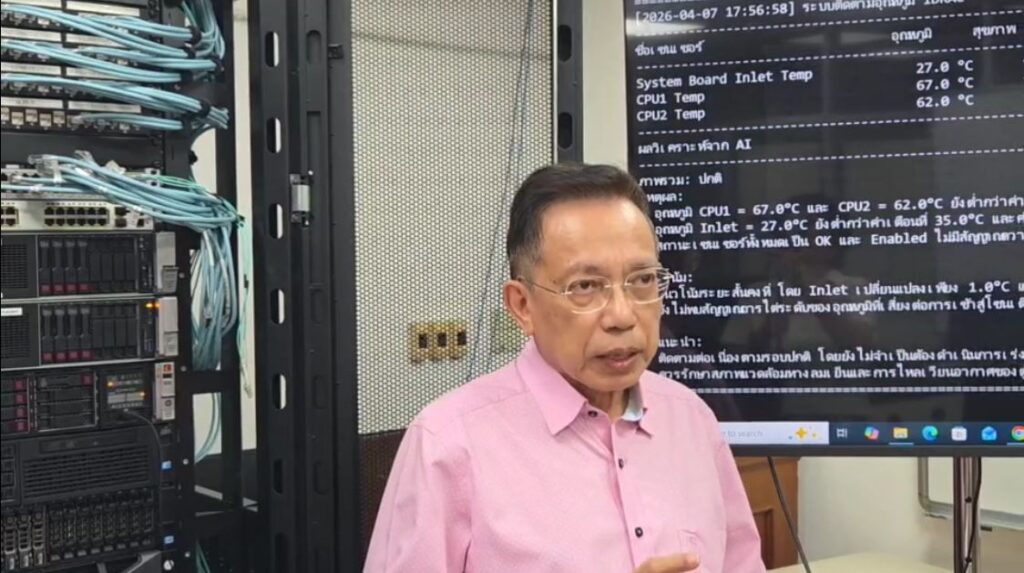
ในยุคที่โครงสร้างพื้นฐานขององค์กรขับเคลื่อนด้วย Data Center และระบบ Server ที่มีความซับซ้อนสูง การดูแลรักษา (Maintenance) และการแก้ไขปัญหา (Troubleshooting) ไม่สามารถอาศัยเพียงประสบการณ์หรือการตั้งค่าตามคู่มือแบบดั้งเดิมได้อีกต่อไป หลักสูตรนี้ถูกออกแบบมาเพื่อยกระดับผู้ดูแลระบบ (System Administrator / Infrastructure Engineer) ให้สามารถเข้าใจเชิงลึกตั้งแต่ระดับ Hardware Architecture เช่น CPU, DRAM, VRM, RAID Controller ไปจนถึง Firmware, UEFI และระบบจัดการ Server ระดับองค์กรอย่าง Dell iDRAC และ HPE iLO โดยเน้นการวิเคราะห์ปัญหาจริง (Real-world Troubleshooting) และการทำงานในสภาพแวดล้อมแบบ Multi-Vendor อย่าง Dell, HPE, Lenovo และ Huawei ซึ่งเป็นสิ่งที่พบได้ในองค์กรขนาดใหญ่
ความโดดเด่นของหลักสูตรนี้คือการผสานเทคโนโลยี AI เข้ากับกระบวนการดูแลและวิเคราะห์ระบบ Server อย่างเป็นระบบ ผู้เรียนจะได้เรียนรู้การนำข้อมูลจาก Sensor, Log, และ Performance Counter มาวิเคราะห์ด้วย AI เพื่อคาดการณ์ปัญหาล่วงหน้า (Predictive Maintenance) ลด Downtime และเพิ่มประสิทธิภาพในการตัดสินใจอย่างมีนัยสำคัญ รวมถึงการสร้างระบบ Monitoring, Alerting และ Automated Report ที่สามารถใช้งานได้จริงในองค์กร หลักสูตรนี้จึงไม่เพียงสอน “วิธีแก้ปัญหา” แต่ยังพัฒนาให้ผู้เรียนสามารถ “มองเห็นปัญหาก่อนเกิด” และก้าวสู่การเป็น AI-Augmented Infrastructure Engineer ที่ตอบโจทย์โลก IT ยุคใหม่อย่างแท้จริง
ผู้ที่เหมาะสำหรับหลักสูตรนี้ (Target Roles)
- System Administrator
- Server Engineer
- IT Support Engineer (Level 2 / Level 3)
- Technical Support Engineer (Enterprise Systems)
- Network & System Engineer
- Cloud Infrastructure Engineer
- IT Infrastructure Manager
- Data Center Manager
- IT Operations Manager
- Hardware Maintenance Engineer
- Field Service Engineer (Server / Data Center)
- Technical Consultant (Infrastructure / Data Center)
- Pre-Sales Engineer (Server / Infrastructure Solutions)
รายละเอียดหลักสูตร
Installing and Configuring Server Components
- CPU/RAM Expansion Slots
- Intel XEON Version Compatibility
- NICs / Hard Drive
- RAID Controller
- BIOS/UEFI
- Upgrading Firmware
- Hot-Swappable Components
ขั้นตอนการ Troubleshooting UEFI
องค์ประกอบต่างๆของ Dell Server Main Board
องค์ประกอบทาง Hardware ของ HPE Proliant DL380 Main Board
ระบบ VRM และการซ่อมบำรุง
- องค์ประกอบหลักของ VRM สำหรับ CPU และวิธีการ Troubleshooting
- องค์ประกอบหลักของ VRM สำหรับ DRAM และวิธีการ Troubleshooting
ข้อจำกัดและข้อพิจารณาการ Upgrade และติดตั้ง CPU
ข้อจำกัดและข้อพิจารณาการ Upgrade และติดตั้ง DRAM
RAID Controller วิธีการติดตั้งและวิธีการซ่อมบำรุง
- วิธีการติดตั้ง RAID บน Dell Server และ Troubleshooting
- วิธีการติดตั้ง RAID บน HP Proliant Server และ Troubleshooting
RAID Levels and Performance Considerations
ปัญหา Dell PowerEdge Server ขณะ Boot
การเรียกใช้งาน iDrac ของ Dell Server
- วิธีการอ่านและวิเคราะห์รวมทั้ง Monitoring การทำงานของ Server ด้วย iDrac
- วิธีการควบคุมและบริหารจัดการ Dell Server ด้วย iDrac
- วิธีการและขั้นตอนการใช้ Local AI หรือ Cloud AI ดึงข้อมูลจาก iDrac เพื่อวิเคราะห์
- วิธีการติดตั้งระบบการแจ้งเตือนปัญหาของ Dell Server ด้วย AI แบบอัตโนมัติ
การเรียกใช้งาน iLO ของ HP Proliant Server
- วิธีการอ่านและวิเคราะห์รวมทั้ง Monitoring การทำงานของ Server ด้วย iLO
วิธีการควบคุมและบริหารจัดการ HP Proliant Server ด้วย iLO
- วิธีการและขั้นตอนการใช้ Local AI หรือ Cloud AI ดึงข้อมูลจาก iLO เพื่อวิเคราะห์
- วิธีการติดตั้งระบบการแจ้งเตือนปัญหาของ HP Server ด้วย AI แบบอัตโนมัติ
AI-Based Predictive Failure Analysis
- วิเคราะห์
- CPU Temperature Trend
- Fan Speed Pattern
- Power Consumption Drift
- พยากรณ์
- PSU Failure
- Fan Failure
- Disk Failure
ความรู้ลึกเรื่องมาตรฐาน SOP (Standard Operating Procedure)
- SOP: ขั้นตอนการตรวจสอบ Server ก่อนส่งมอบงาน
- ลำดับขั้นตอนการทำงานของ SOP
- วิธีการจัดทำคู่มือ SOP
มาตรฐานการทำ Server Maintenance
- วิธีการสร้าง Server Maintenance Template
Standard Server Maintenance Checklist
เครื่องมือทดสอบฮาร์ดแวร์เซิร์ฟเวอร์ HP
- HP Insight Diagnostics
- HPE Smart Update Manager (SUM)
- HPE Integrated Lights-Out (iLO)
เครื่องมือทดสอบฮาร์ดแวร์เซิร์ฟเวอร์ของ Dell
- Dell Support Assist
- Dell Open Manage Server Administrator (OMSA)
- Dell Embedded System Management (iDRAC)
เครื่องมือซอฟต์แวร์สำหรับการทดสอบฮาร์ดแวร์เซิร์ฟเวอร์ Huawei
- Huawei Smart Kit
- Huawei iBMC (Intelligent Baseboard Management Controller)
เครื่องมือซอฟต์แวร์สำหรับการทดสอบฮาร์ดแวร์เซิร์ฟเวอร์ IBM
- IBM Hardware Management Console (HMC)
- IBM Spectrum Control
- IBM Systems Director
เครื่องมือซอฟต์แวร์สำหรับการทดสอบฮาร์ดแวร์เซิร์ฟเวอร์ Lenovo
- Lenovo XClarity Integrator
- Lenovo System Update
Proper Server Maintenance Techniques
Patch management สำหรับ server maintenance
AI for Patch & Backup Strategy
- Predict
- Patch impact
- System downtime risk
- Optimize
- Backup window
- Incremental strategy
Server Maintenance Schedule Template
Multi-Vendor Server Maintenance Checklist
- Dell PowerEdge Server Maintenance Checklist
- HP Proliant Server Maintenance Checklist
- Lenovo ThinkSystem Server Maintenance Checklist
AI-Driven Maintenance Automation
- Generate Maintenance Report อัตโนมัติ
- วิเคราะห์ Checklist
- อะไร “ผ่าน”
- อะไร “เสี่ยง”
- AI-Based Server Health Scoring
- Automated Maintenance Report Generation
วิธีการ Audit Server และการจัดทำ Report
Server Health Report Template
- Configuring Account and Password Policy
- Configuring Audit Policy
- Configuring User Rights Assignment
- Configuring Security Options
- Configuring Group Policy
- Encryption Technologies
- BitLocker and the Virtual TPM
- Shielded VMs
- Encrypted Virtual Networks
- Encrypting File System
Windows Server 2016/2019 Security Checklist
Storage Security
Server Incident Report Forms
วิเคราะห์ Windows Server Counter ใน Perfmon
Tools ที่ใช้ monitor server
วิธีการดู System Log ใน Windows Server 2022
- การดึง Log จาก Windows Server ไปเก็บไว้ที่ส่วนกลาง
AI Log Correlation Engine
- Correlate
- System Log + Security Log + Hardware Log
วิธีการติดตั้ง WSUS
Server Monitoring
- Server CPU and Memory performance threshold
- Monitoring Server Health
- Monitoring Server Services Status
- Server Health Monitoring Threshold
- ติดตั้งและใช้งาน Prometheus
- ติดตั้งและใช้งาน Grafana
Monitor
- CPU / RAM / Disk / Network
- สร้าง Dashboard ระดับ NOC / SOC
- เตรียม Data สำหรับ AI วิเคราะห์
Windows Server Backup/ Install
วิธีการตั้งค่า Incremental Backup บน Windows Server 2022/2025
Troubleshooting Dell PowerEdge Server / HP Proliant Server
- วิธีการอ่านและตีความหมาย Error Code / Error Message
- Dell PowerEdge Troubleshooting Report Template
- Case 1: Server ไม่ Boot (No POST) – เจาะลึกขั้นตอนการแก้ไข
- Case 2: Amber LED บนตัวเครื่อง (System Health Alert)
- Case 3: RAID Degraded (RAID 5)
- Case 4: RAM Error (ECC / DIMM Fault)
- Case 5: CPU Overheat (วิกฤตความร้อน)
- Case 6: Firmware Mismatch (ความไม่สอดคล้องของเฟิร์มแวร์)
AI Troubleshooting Assistant
- ให้ AI วิเคราะห์จาก
- Error Code
- Log
- Sensor Data
AI วิเคราะห์ Hardware Fault Pattern
- VRM instability
- CPU throttling
- Memory channel imbalance
HP ProLiant Server Troubleshooting Report Template
Lenovo Server Troubleshooting Report Template
Lenovo XCC Official Event Messages